Every keyboard shortcut in Golden (and the one that finds the rest)
Some people live on the keyboard. So we built shortcuts in everywhere, across Discover, Prep, Analyze, and Communicate. Here's the full set, and the one shortcut (Command+K) that finds all the others for you.
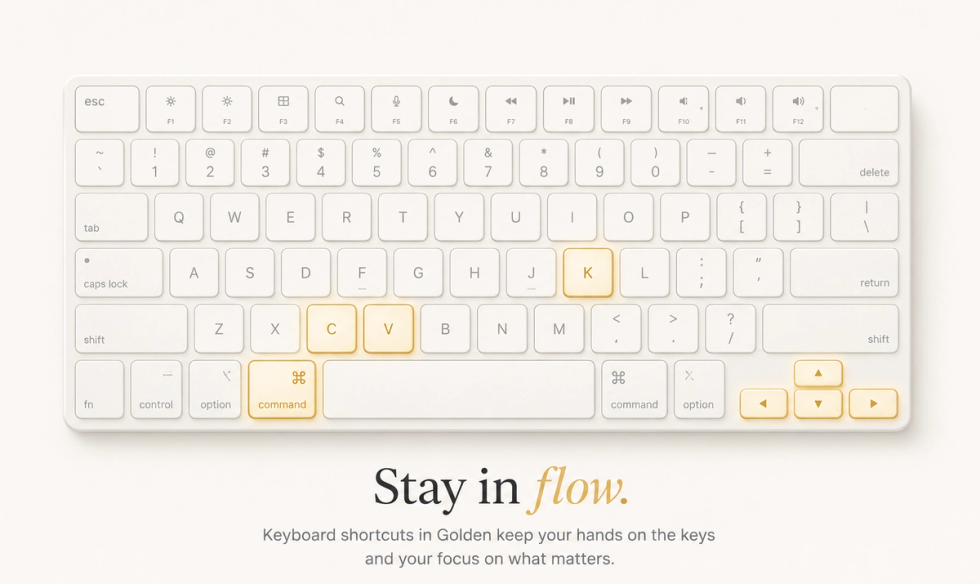
The best software gets out of your way.
When I’m in the middle of analyzing data, the last thing I want to do is hunt through menus looking for a command. Every interruption breaks my train of thought. Every extra click slows me down.
That’s why I’ve always loved keyboard shortcuts.
They’re not about showing off that you’re a power user. They’re about staying in flow. Your hands stay on the keyboard, your eyes stay on the problem, and the software fades into the background.
We built Golden the same way.
Whether you’re preparing data, building a visualization, designing a dashboard, or writing a story, the keyboard works consistently across the product. Learn a handful of shortcuts once and they become second nature everywhere.
And the best part? You don’t have to memorize them.Some people live on the keyboard. It's how they move faster, stay in flow, and keep their hands where the work is instead of hunting through menus. I'm one of them. I love it. Shortcuts make me more productive, and they keep me focused on the actual task instead of the tool.
Start with Command+K
If you only remember one shortcut, make it Command+K (or Ctrl+K on Windows).
It opens Golden’s command palette—a searchable list of just about everything you can do. Jump between views, switch chart types, run a data prep step, toggle a panel, or execute commands without taking your hands off the keyboard.
More importantly, it’s how you discover everything else.
Every command in the palette displays its keyboard shortcut right beside it, using the right symbols for your operating system. Instead of memorizing dozens of shortcuts, you’ll naturally pick them up as you work.
Think of Command+K as the shortcut that teaches you all the other shortcuts.
Here’s the complete list.
Work anywhere
These shortcuts work across most of Golden, no matter what you’re doing.
⌘K / Ctrl+K: Open the command palette
⌘Z / Ctrl+Z: Undo
⌘⇧Z / Ctrl+Shift+Z (or ⌘Y): Redo
Two more are always available, wherever you are in an analysis:
Ctrl+1: Toggle the left sidebar
Ctrl+2: Toggle the AI pane for the view you're in (Analyst on a chart, Storyteller on a dashboard, Data Agent in Prep)
The Ctrl+number shortcuts make it easy to show and hide the panels you use most without leaving the keyboard.
Analyze: building a chart
Ctrl+3: Toggle the encodings and shelves pane
Ctrl+4: Toggle the filter bar
Ctrl+5: Toggle the format pane
⌘⇧C / Ctrl+Shift+C: Copy the chart as an image
Prep: getting data ready
Ctrl+8: Switch to the table view
Ctrl+9: Switch to the data dictionary
Communicate: the dashboard canvas
This is where the keyboard really pays off. You're arranging components, and reaching for the mouse every time slows you down.
⌘C / Ctrl+C: Copy the selected components
⌘V / Ctrl+V: Paste them where your cursor is
⌘D / Ctrl+D: Duplicate the selected element
Delete or Backspace: Delete what's selected
⌘Delete / Ctrl+Backspace: Delete even while you're editing inside a component
Arrow keys: Nudge the selection 1px
Shift + Arrow: Nudge 10px
+ or =: Zoom in
-: Zoom out
Ctrl+4 to Ctrl+7: Toggle the filter bar, format pane, fields pane, and layers pane
Escape: Clear the selection
A couple of nice touches: copying dashboard components doesn’t overwrite your system clipboard, so you can still paste text into another application. And repeated nudges are grouped into a single undo action, so one Undo returns an object to where it started instead of stepping back one pixel at a time.
The short version
Start with Command+K.
Everything else builds from there.
You’ll naturally pick up Undo, the Ctrl+number pane toggles, and the shortcuts you use most often. Before long, you’ll stop thinking about the interface entirely.
That’s the goal.
The best analytics tools don’t demand your attention. They keep it on your data. Every keyboard shortcut in Golden exists for the same reason: to make the software disappear so you can stay focused on the question you’re trying to answer.