Chat with your data in Golden
Chat lives on every screen in Golden. Here's a tour of what it actually does, with real prompts and real screenshots.
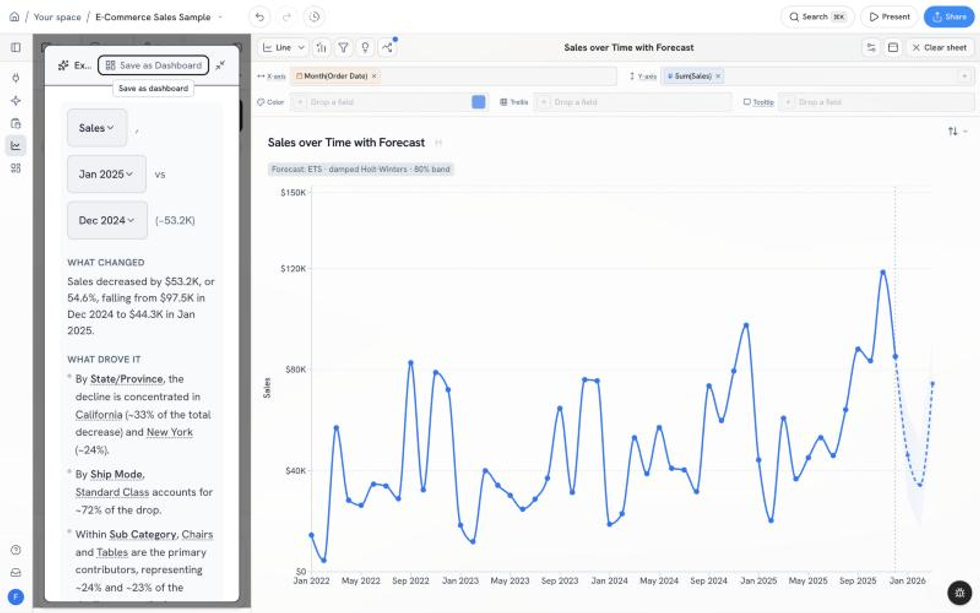
With Golden, you say what you want, the thing gets done, and you stay in the driver's seat the whole time.
Chat in Golden can do more than most people realize. It runs in Discover, Prepare, Analyze and on your dashboards, and it changes what's on screen instead of just describing it. So I sat down with our E-Commerce sample (10,194 orders, 2022 to 2025) and typed the prompts below. Every screenshot is exactly what came back.
1. Ask questions, get real answers
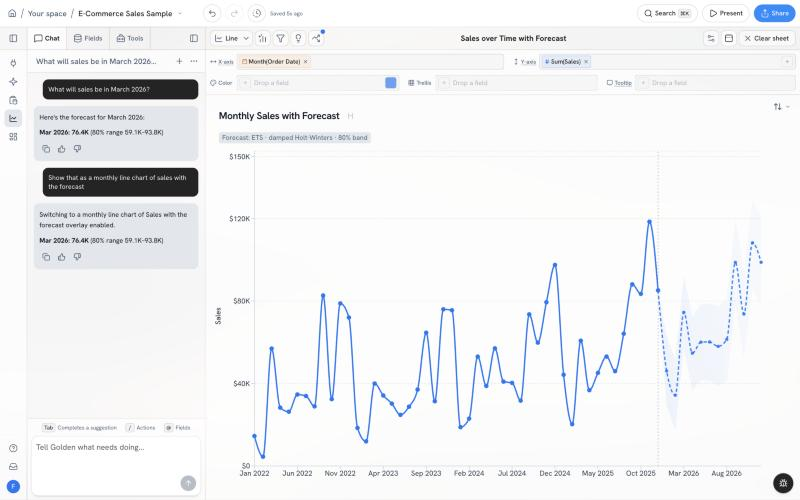
The dashed line is the projection; the shaded band is its 80% range.
I asked What's driving Profit? Golden ran its insight engine and came back with findings I'd want in a review: Tables is the deepest loss-making sub-category, a 70% discount is the most damaging discount level (8 of the 12 discount levels lose money), Texas loses the most profit of any state, and orders spike in November and December.
Then What will sales be in March 2026? The answer: 76.4K, with an 80% range of 59.1K to 93.8K. The forecast engine computes that number, so the AI isn't guessing at it. When there isn't enough history, it says so.
On a grocery dataset I asked Which products are bought together? Golden ran a market basket analysis across 297 baskets and 741 possible pairings. Chicken Breast and Whole Milk show up together 1.6x more often than chance, in 14 baskets.
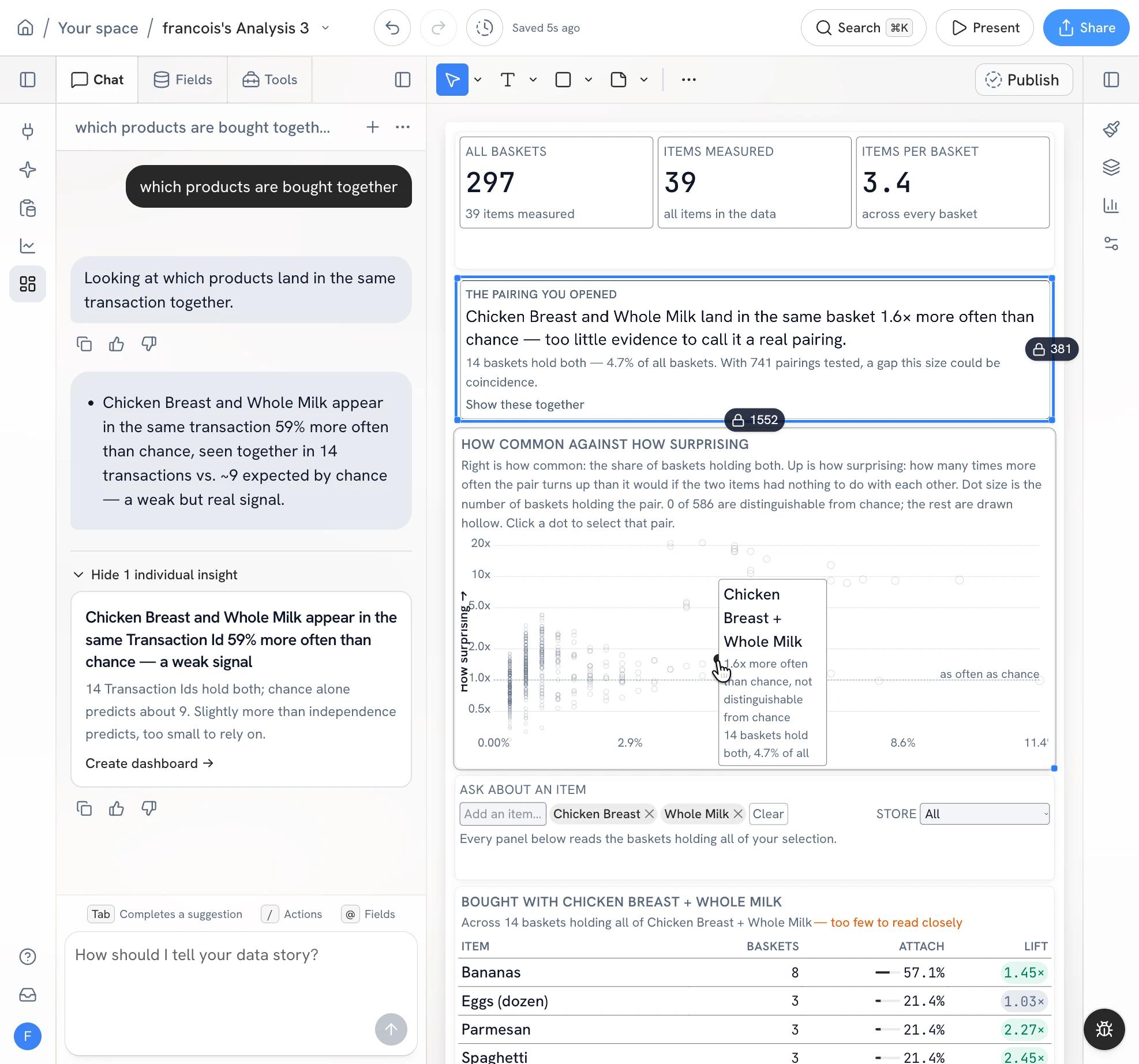
Every pair plotted by how common and how surprising it is. Pick items to see what else lands in the same basket.
I love that it tells you when a pattern is too weak to trust: "too little evidence to call it a real pairing." That's the analyst I want on my team.
My favorite is the why question. Sales fell off a cliff going into 2025, so I asked Why did sales drop so much from December 2024 to January 2025?
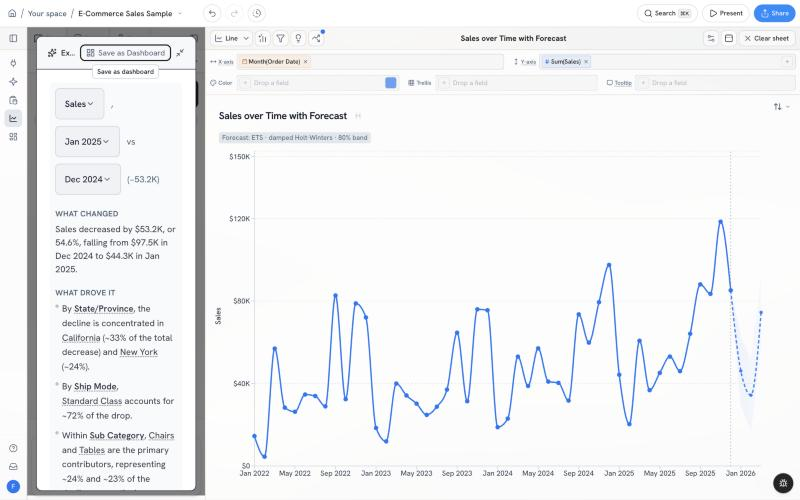
Golden breaks a change down by every dimension it can find and ranks what moved the number.
Sales fell $53.2K, or 54.6%, from $97.5K to $44.3K. California accounts for about a third of the drop and New York another quarter. Standard Class shipping is about 72% of it, and Chairs and Tables lead the product side. That's the first hour of a variance review, done before I finish my coffee.
2. Build and tweak visualizations
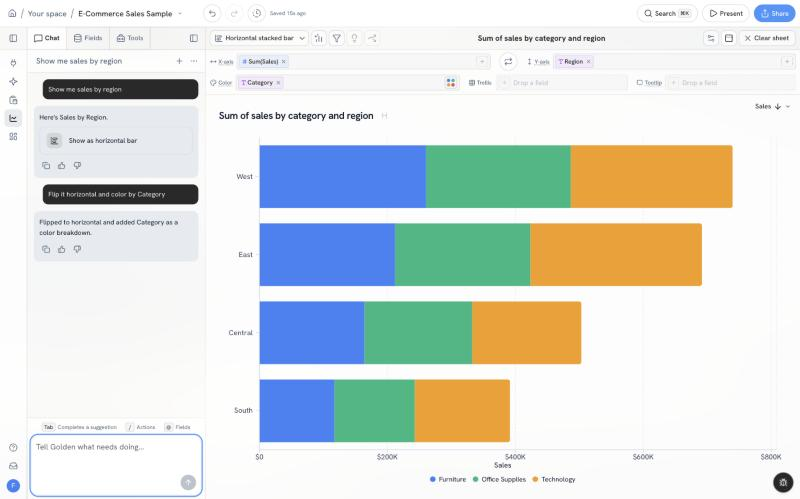
"Show me sales by region," then "Flip it horizontal and color by Category."
Describe the chart and it shows up. Then keep talking to it. My second message flipped the bars and split each region by category in one go. West leads, then East.
Every answer also ends with next steps you can click. See the Show as horizontal bar button under the first reply? One click and it's done, no typing.
Those buttons earn their keep when the first try doesn't land. I asked for sales by quarter as bars with year over year growth. Chat told me straight up it couldn't apply the growth calculation to that chart, then offered two other ways to see it. I clicked Overlay years side by side:
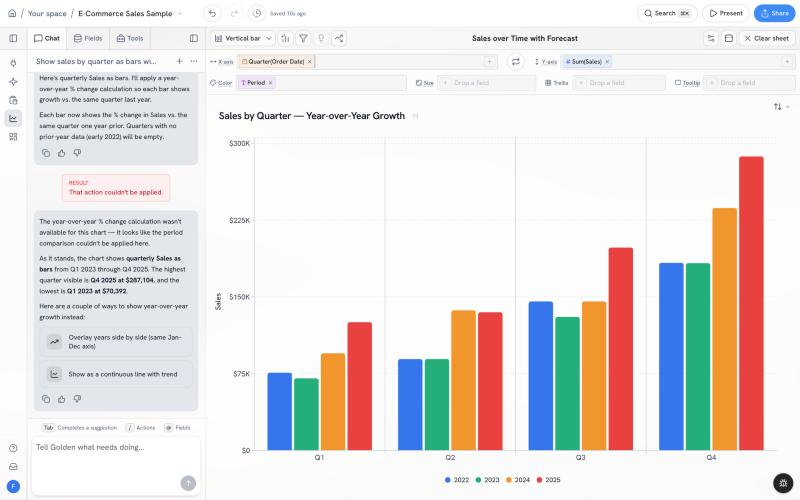
Every quarter, every year, side by side. 2025 wins all four.
You can also build charts for other people to explore. I asked for sales by region and to let readers switch between Sales, Profit and Quantity. Golden put a picker right in the chart title.
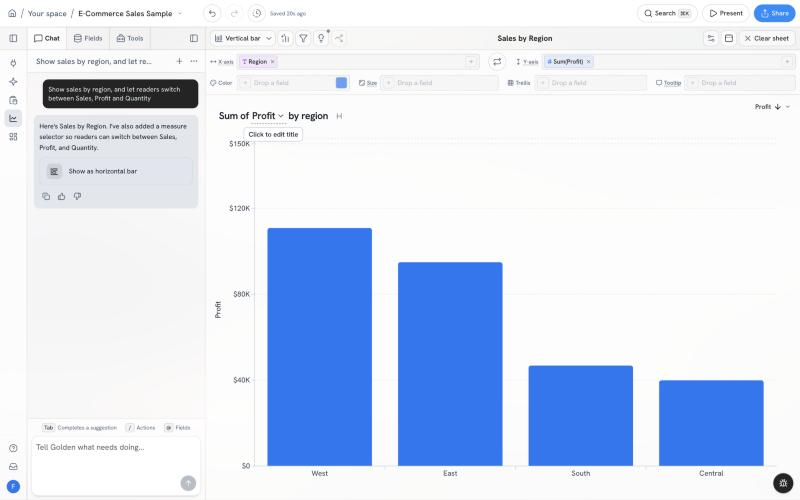
Switch the title to Profit and the story changes: Central is third in sales and last in profit.
- Change anything on the chart: aggregation, date buckets, colors, sorting, reference lines, trend lines, annotations.
- Table calcs without the math: running totals, percent of total, moving averages, rank.
- Format once: format Sales as currency fixes it everywhere that column shows up.
3. Calculated fields and filters
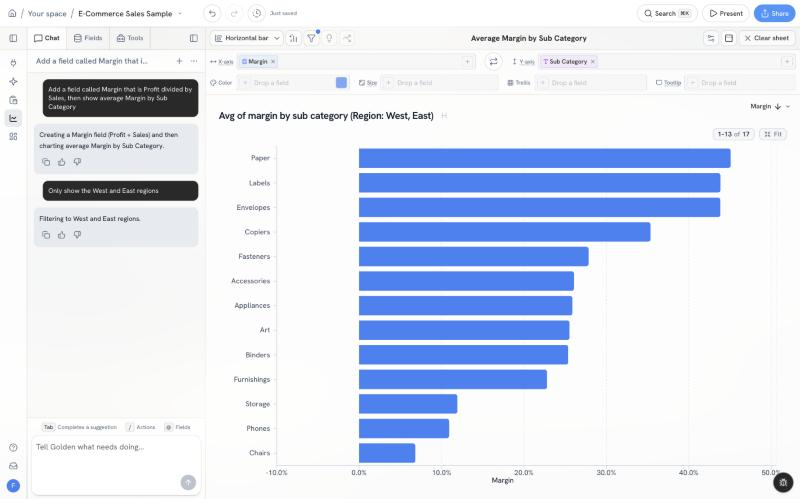
A new Margin field and a region filter, both from plain English.
I typed Add a field called Margin that is Profit divided by Sales, then show average Margin by Sub Category. Golden wrote the formula as SUM([Profit]) / SUM([Sales]) (the right way to do a ratio, which I appreciated) and charted it.
Then Only show the West and East regions. The filter landed and the chart title updated to say so. Paper, Labels and Envelopes come out on top; Chairs bring up the rear.
Filters can be geographic too. I asked Show me stores within 50 miles of Seattle and got a map with the radius drawn on it and every store inside it plotted, from Everett down to Tacoma and Olympia.
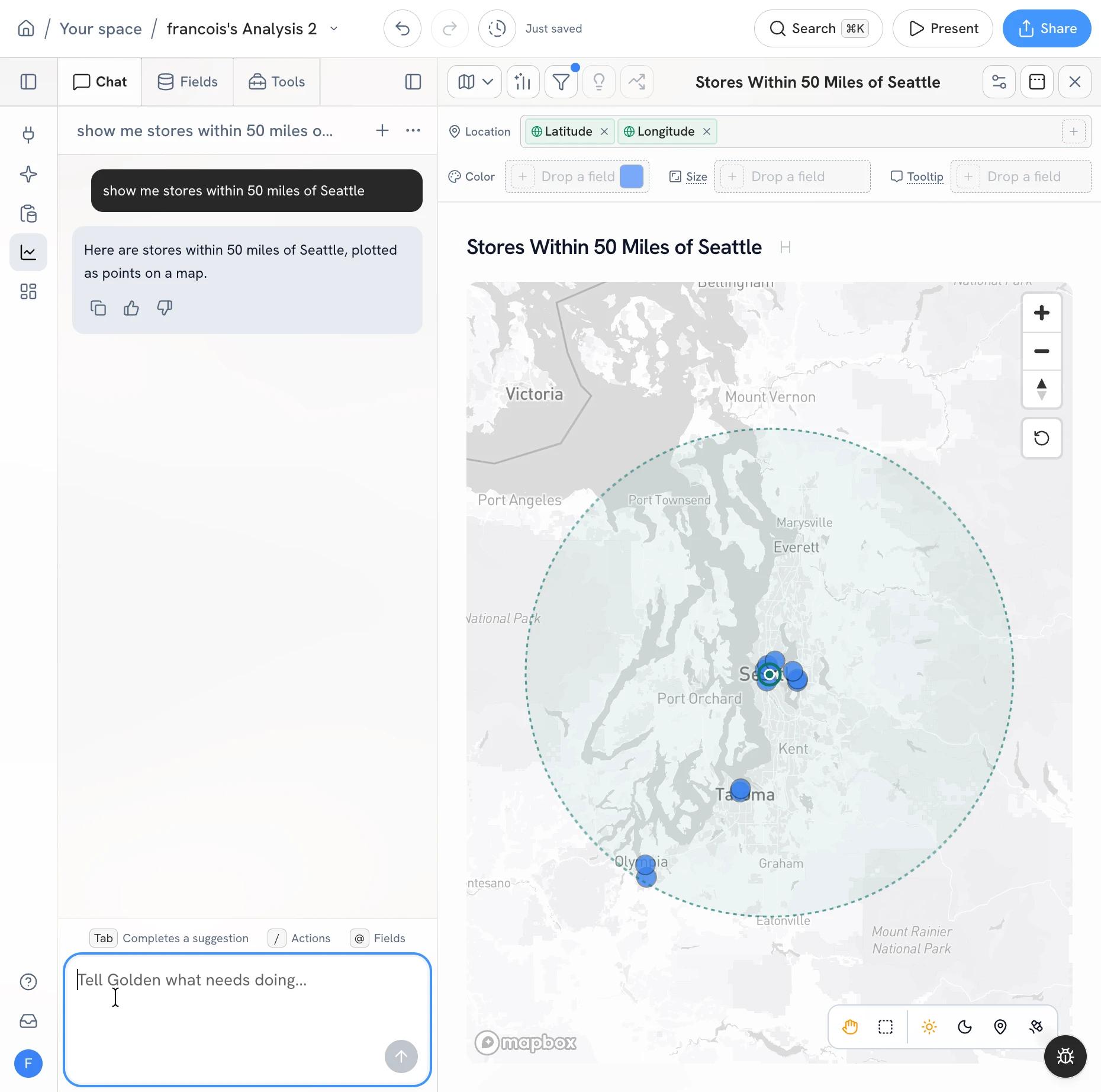
A distance filter from one sentence. The dashed circle is the 50-mile radius.
You can also rename or rewrite a calculated field, clear filters in bulk, and fix how a field behaves (stop summing Postal Code).
4. Build whole dashboards
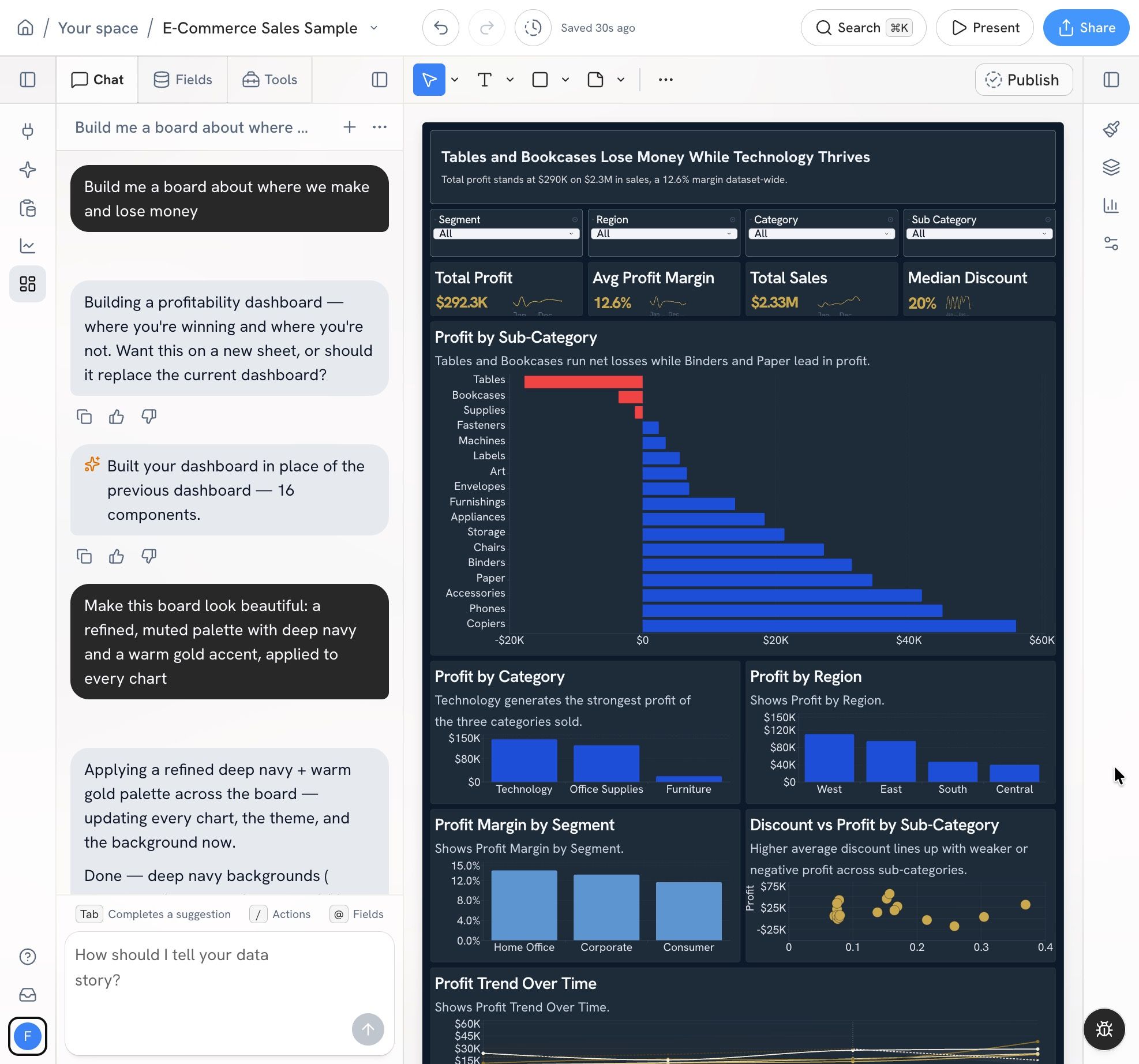
One prompt built 13 components. A second one restyled the board.
On a blank dashboard I asked Build me a board about where we make and lose money. Chat first asked whether to put it on a new sheet or replace the one I was on. It asks before it overwrites anything. Then it built 13 components: filters for Region, Segment and Category, profit and margin KPIs, a profit-by-sub-category chart, and a headline that says what matters: Sales Up 278% Since 2022, But Profit Margin Sits at Just 12.6%.
Then Use a warm gold palette and shorten all the titles restyled the charts and tightened the copy across the whole board.
From there you can add single tiles (a chart, KPI, text, shape, link or a chart you already built), group things into rows, run auto layout, and change themes and fonts.
5. Clean up your data in Prep
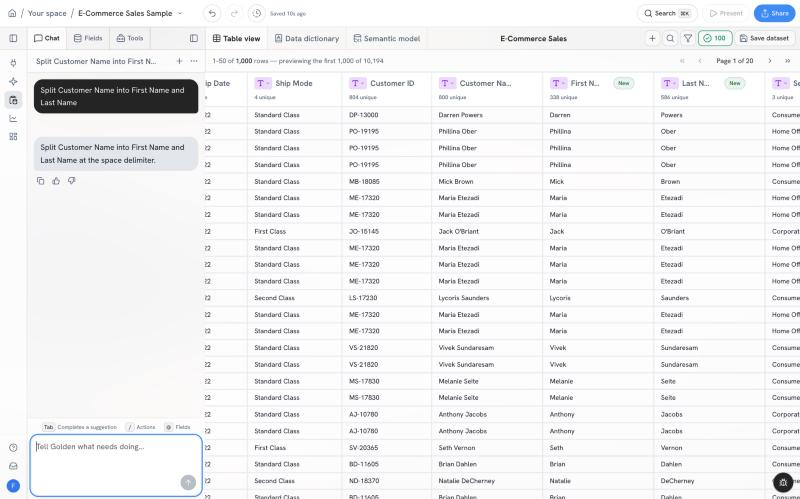
"Split Customer Name into First Name and Last Name." Two new columns, tagged New.
Prep is where analysts lose their afternoons. One sentence split every customer name into first and last name columns.
Chat handles about 20 transforms: remove duplicates, trim spaces, fix capitalization, find and replace, fill blanks, round, rename, delete rows that match a condition, unpivot wide data, pull the year or quarter out of a date, clip outliers, and rescale columns. For messy text (say, an address field), it can use AI to pull out the pieces: pull street, city, state, zip from Address.
6. Undo, present, export
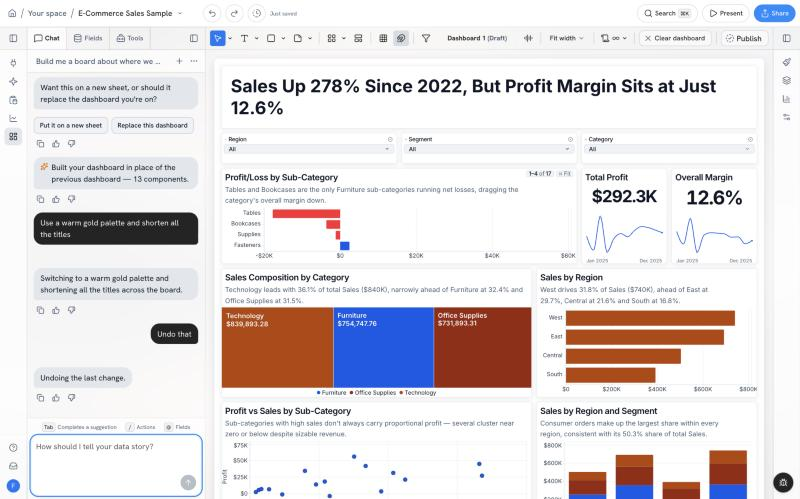
"Undo that" works in chat, one step at a time.
Because chat makes real changes, you need a way to take them back. Undo that reverts the last change, and you can keep going one step at a time. Same for redo.
When you're done, Present this goes full screen on the chart or dashboard you're on, and Export this to PowerPoint opens export. Ask for a dashboard while you're in Prep and chat hands you off to the right place to build it.
7. Or just chat
Some people don't want a canvas, a shelf or a dashboard. They just want to ask questions. That's what Chat with your data on the Discover page is for.
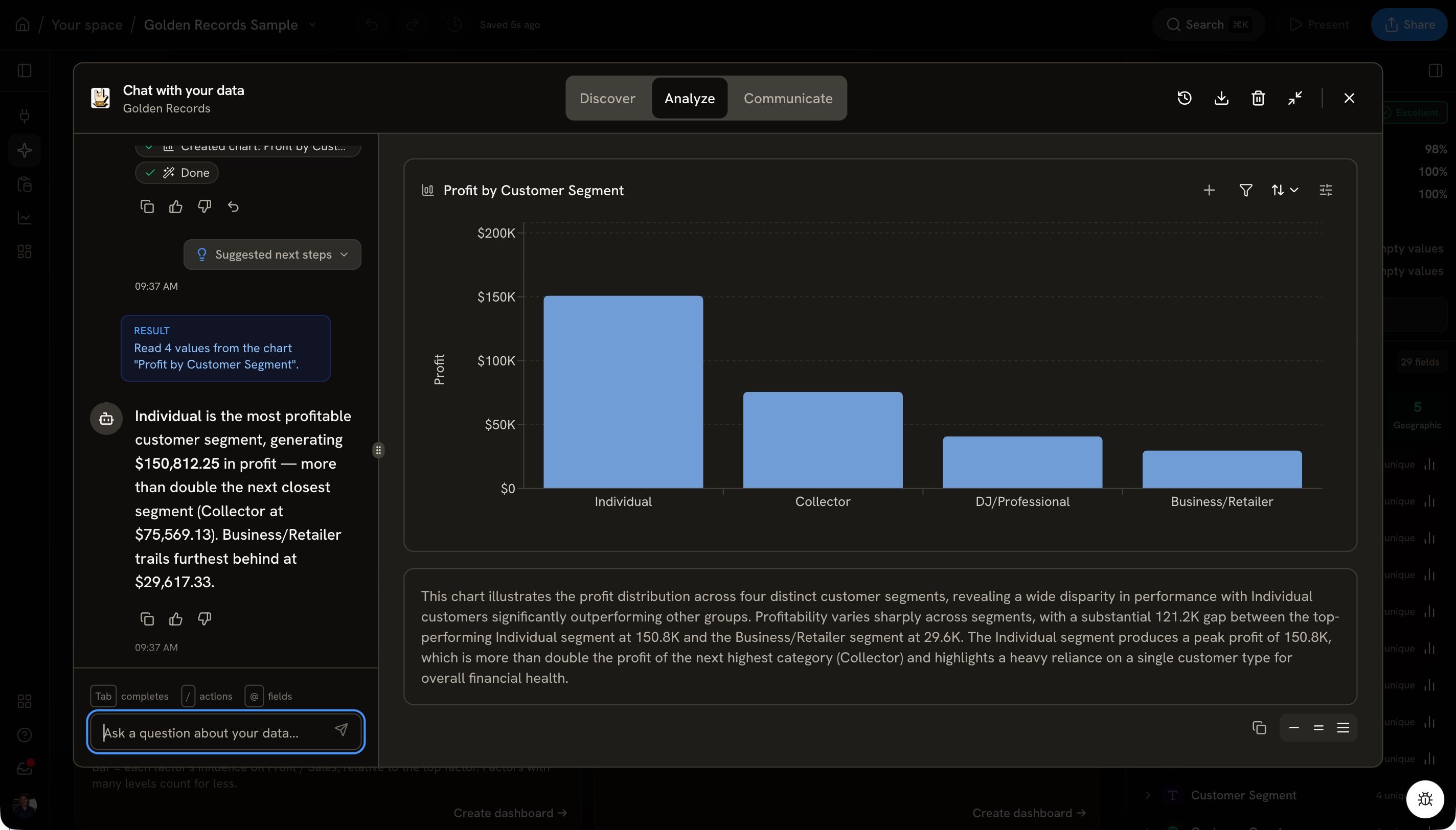
One question, two charts and a plain-English read-out.
It opens a full-screen conversation with your dataset. Start from one of the suggested explorations or type your own. I asked Which customer segment is most profitable, and is it growing? It answered both halves: Consumer leads on total profit, and its quarterly profit grew from 1.9K in Q1 2022 to 14.5K in Q4 2025.
It's the same chat you've seen all through this post, minus the furniture. When an answer is worth keeping, flip the chat to Communicate and pick a dashboard. The charts from your conversation land there.
What it won't do
I'd rather tell you the limits than have you find them. If chat can't do something on the screen you're on, it says so and points you to where you can. And it's never allowed to tell you it changed something unless it actually did. We test for that, because an assistant that bluffs is worse than no assistant.
Load the E-Commerce sample from the home page, open chat, and try What's driving Profit? Then tell me what you wish it did next.