Connect your data
Bring data into Golden Analytics from files, Google Sheets, or a cloud warehouse such as Snowflake, BigQuery or Salesforce Reports.
Connect is the first stage of an analysis. You pick a source, and Golden loads it into a dataset you can explore, prepare, and visualize.
Where to start
- From the sidebar, open Datasets to create a Shared Dataset, or start a new analysis to load data into a session.
- On the Connect screen, pick a source category from the left nav: Cloud data sources, Upload files, Shared datasets, or Sample datasets.
- Follow the prompts for that source. Once data loads, you move on to Prepare and Discover.
Upload files
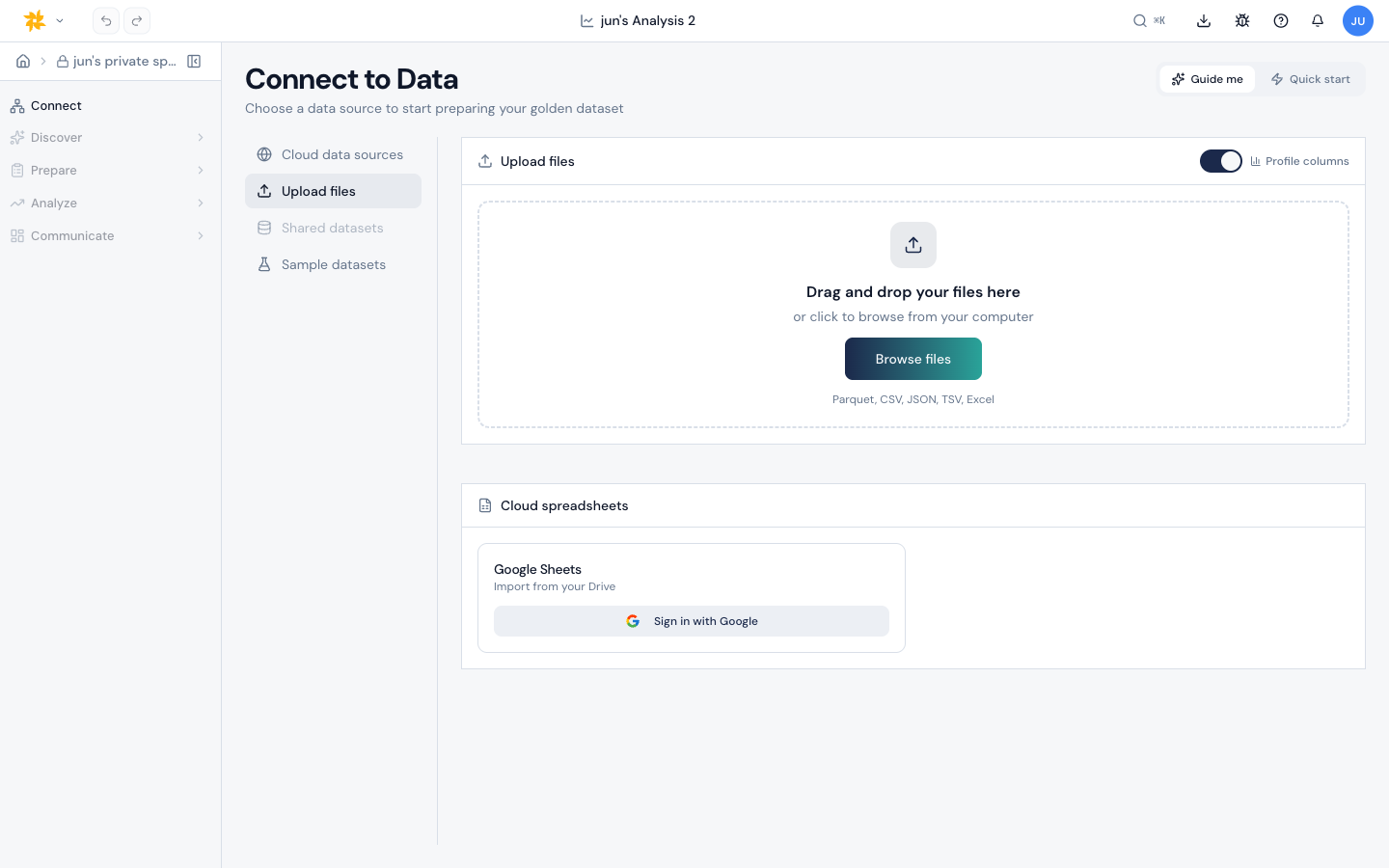
The file picker accepts .csv, .txt, .tsv, .xls, .xlsx, .json, and .parquet. Multi-sheet workbooks prompt you to pick a sheet before loading.
Google Sheets
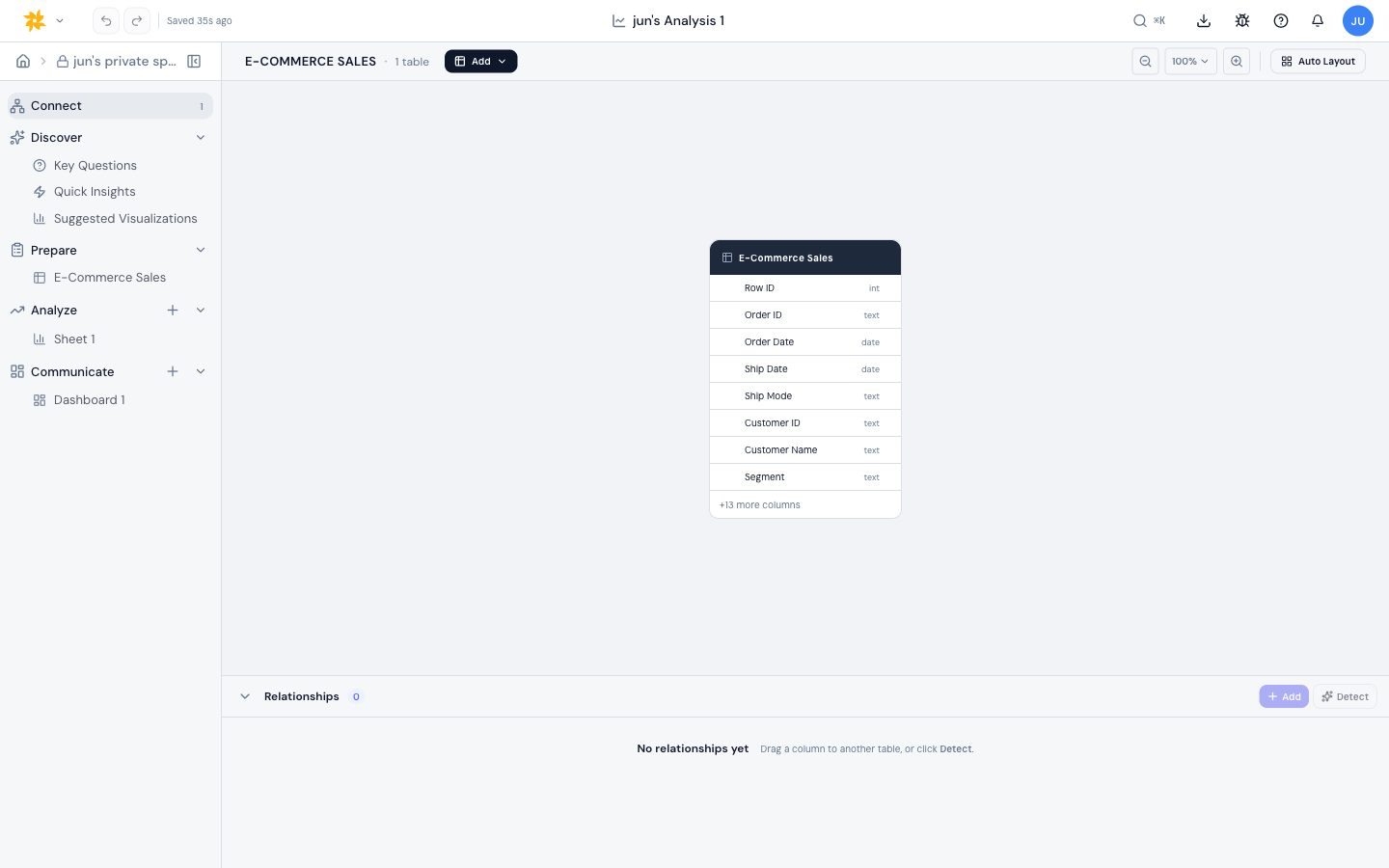
Sign in with Google, pick a spreadsheet, then pick the tab you want. Golden imports the chosen sheet as a dataset. Note that by default, Golden shows only the content that you own in Google Sheets. If you want to access content that was shared with you by another person, select the "include shared with me" toggle.

Cloud data sources

Under Add new connection, pick Snowflake, Databricks, Google BigQuery, Amazon Redshift, Microsoft Fabric, Azure SQL Database, or Salesforce Reports. These cloud connectors are available to every workspace.
Shared and sample datasets

Shared datasets are curated tables your teammates saved earlier — they appear under the Shared datasets tab with a count badge. Sample datasets are built-in CSVs you can use to try out the product before connecting your own data.