Inviting members to a Space
Add people and groups to a Space from its Members dialog, and invite someone new to Golden right from the search box when you are an Account Admin.
Adding someone to a Space gives them access to what is in it. The person needs to be a member of your Golden account too. If they aren't yet, an Account Admin can invite them to Golden and to the Space in one step.
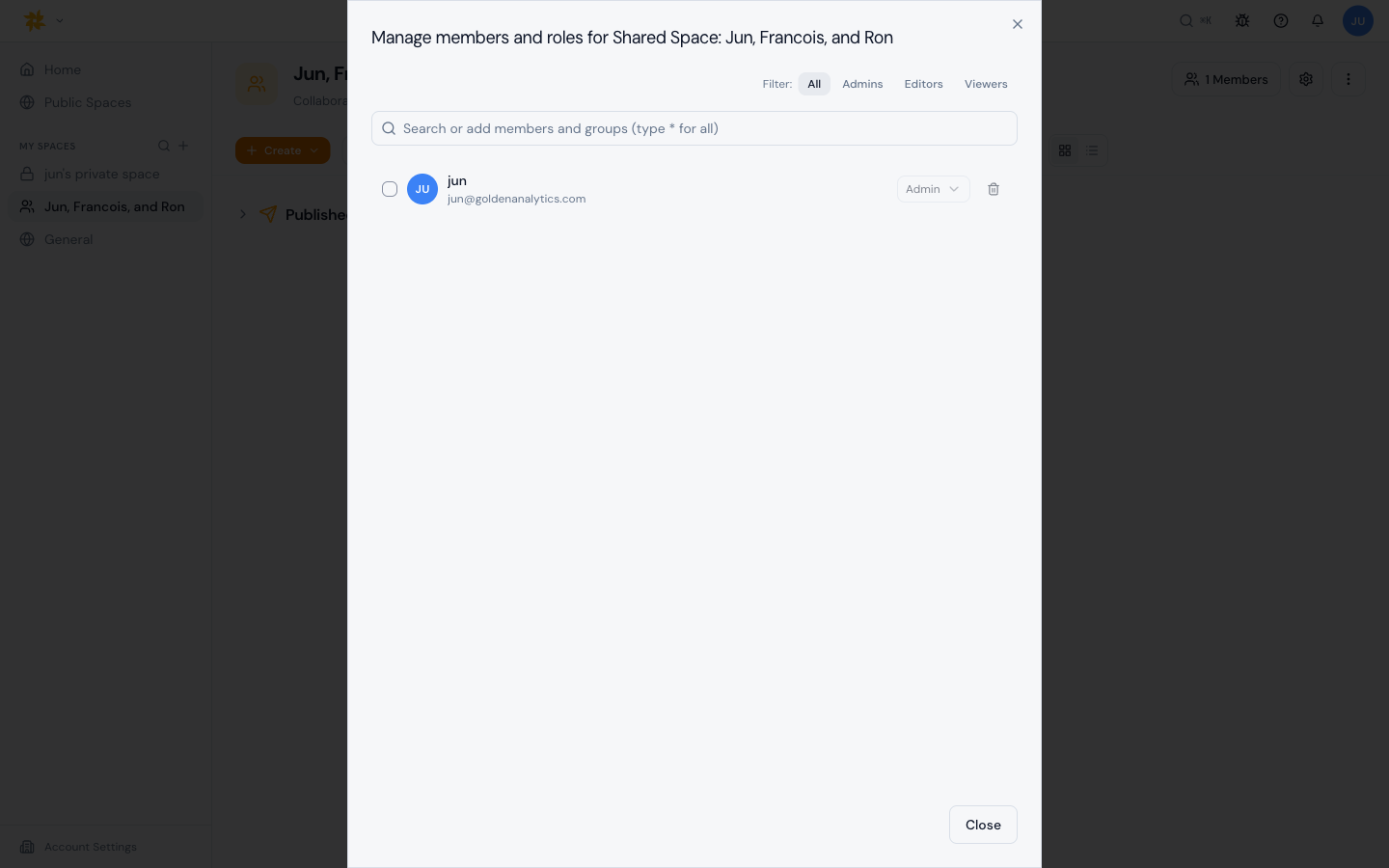
Open the Members dialog
- Open the Space you want to add someone to.
- Click the Members button in the top right of the Space header. In a Collaboration Space it shows a people icon and the current member count; in a Public Space it shows a globe and reads Public.
- The dialog title reads "Members of <space>", with a subtitle noting whether it is a Collaboration space or a Public space. Filter the list with the All, Admins, Editors, and Viewers tabs.
Add people and groups
Space Admins can add people. The search box reads "Search or add members/groups..." with a "Type for all" hint. Type to list everyone.
- Type a name or email into the search box.
- Current members appear under an "In this space" heading. Account members who aren't in the Space yet appear under "Not in this space". People who have a pending invitation to Golden appear under "Invited, not in this space", and account groups under "Groups not in this space".
- Click the person's name, or click Add as Editor, to add them as an Editor.
- To pick a different role, open the arrow next to Add as Editor and choose Add as Admin or Add as Viewer.
- The person is added right away and gets an in-app notification titled "You've been added to "<space>"".
Invite someone who isn't in Golden yet
If you are an Account Admin as well as a Space Admin, you can invite a new person from the same search box.
- Start typing the person's name or email. Golden completes it with your account's email domains as you type, so you can pick fred@yourcompany.com after typing fred.
- Pick a completion, or finish typing the address and click Invite <email> to Golden.
- They join the account as a Contributor and get Editor access to this Space when they accept.
The same completion and Invite <email> to Golden button appear when you share an analysis or create a Collaboration Space. Golden only offers an invitation where you can also give the person access, so it never invites someone into an account where they would see nothing.
Restrict invitations to your domains
Account Admins can limit who can be invited. In Settings, choose Members and scroll to Invite restrictions. Enter a domain such as acme.com and click Add domain. Once any domain is listed, only addresses on those domains can be invited, and an invite to any other address is refused with "This email domain isn't allowed by your account's invite settings." With no domains listed, anyone can be invited.
Change roles or remove members
Space Admins can switch any member between Admin, Editor, and Viewer with the role control on their row. To change several people at once, check their rows (or Select all), pick a role, and click Apply, or use the trash icon to remove them.