Spaces
Create a space, share work out of Your space, move or duplicate items between spaces, leave a space, ask for access, choose a space's card thumbnail, and get notified when a space has something new.
A space is a place inside your Golden account. Your account is the tenant that holds everyone on your team. Spaces sit inside it and hold the analyses, dashboards, datasets, and connections you actually work with.
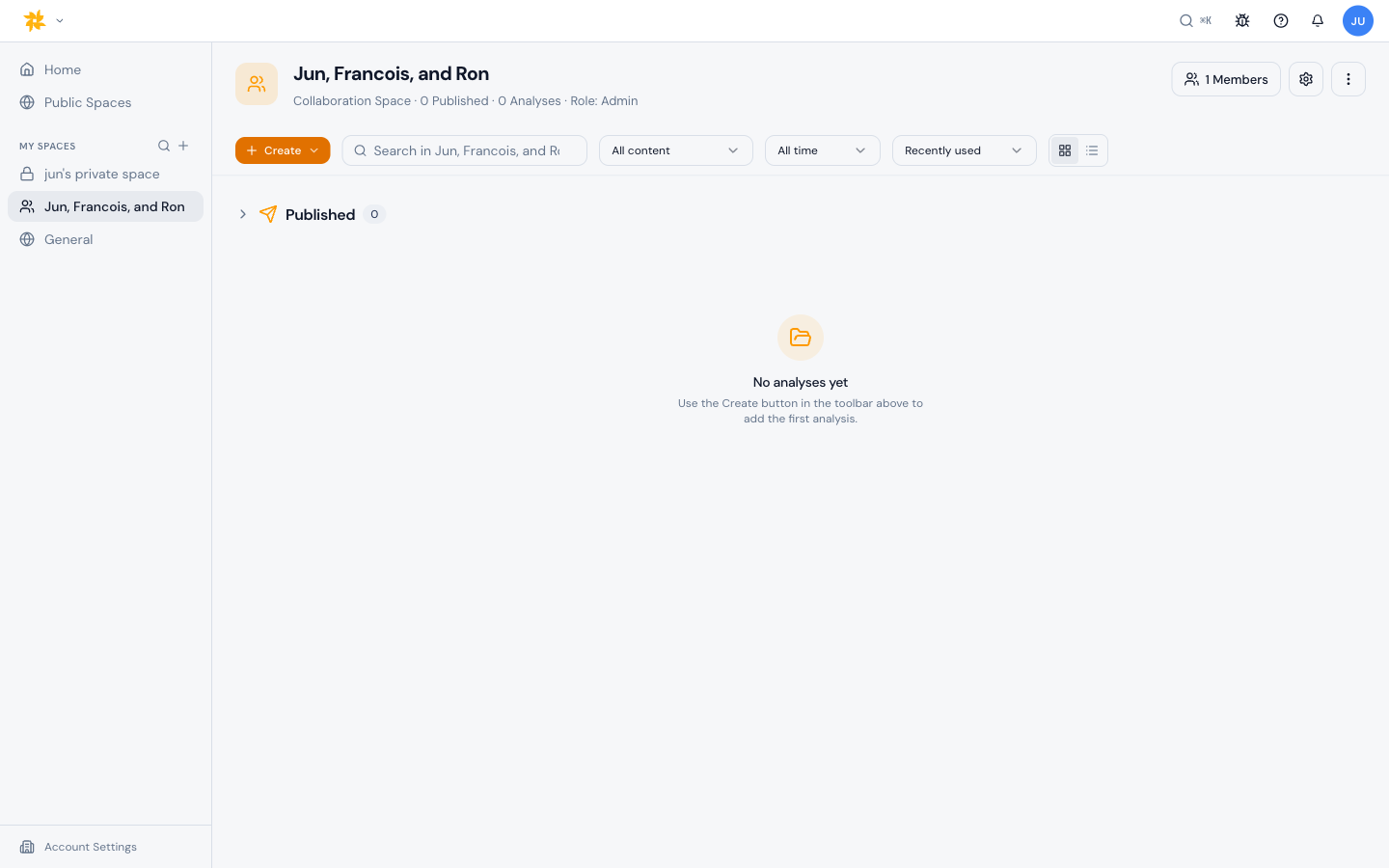
Three kinds of spaces
- Your space - your private space. It is created for you automatically and only you see it.
- Public space - anyone in your account can find it and join.
- Collaboration space - invite-only. Only people who are added can open it.
Create a space
- Click the Create button at the top of the sidebar and choose Collaboration space or Public space. On Home you can also click Make a space.
- Enter a Space name and, if you like, a Description, then click Next.
- Under Add members (optional), search by name or email to add people, and set each one to Admin, Editor, or Viewer. Tick Notify members by email to send them a message.
- Click Create Space. You can always add more members later.
What lives in a space
A space shows its content in sections: Published, Analyses, Shared datasets, and Data Connections. Above them are a Create button, a search box, a content filter (All content, Published, Analyses, Shared datasets, Data connections), and sort options such as Recently used and Name A-Z.
Share something from Your space
Items in Your space are visible only to you, so sharing one means moving or copying it into a space other people can see. Choose Share… from an analysis's menu, or from a dashboard's menu in Your space.
- Choose Move to a space (the analysis leaves Your space) or Duplicate to a space (a copy is shared and the original stays private).
- Under Space, pick a space, or choose Create a new collaboration space… and give it a name.
- Search for the people to tell about it. They get an in-app notification.
- Click Share. Copy URL copies a link to it instead.
Move or duplicate between spaces
An analysis's menu has Duplicate and Move to space. Shared datasets and data connections have Duplicate to and Move to space, each with a list of spaces to choose from.
Manage a space
Space admins see a settings button in the space header with Edit (name and description), Change thumbnail, Convert to collaboration space or Convert to public space, and Delete. Everyone sees More options, with Details, Copy URL, and Leave this space.
Leaving a public space removes it from your sidebar; ask a space admin to add you back if you want to rejoin. Leaving a collaboration space means you lose access to all of its content.
Give a Space a cover image
Every Space shows as a card on Home, and you can choose the image on that card. Open the card's ⋯ menu and choose Change thumbnail — you can also reach it from inside the Space — to open the "Choose a thumbnail" picker. Pick from Golden's built-in image library, upload one of your own just for that Space, or set it back to No thumbnail for the plain placeholder. A bundled photo fills the card edge to edge; an image you upload is shown whole, so a tall photo isn't cropped. Uploads accept JPEG, PNG, and WebP.
Click Done to save. Uploads must be smaller than 5 MB.
Ask for access
If you open a link to something in a space you can't see, Golden says You don't have access to this content. Click Request access to ask; the button changes to Request sent. The space's admins get the request in their Inbox, where they can Approve or Deny it.
When a shared space has nothing in it yet
If you open a Public or Collaboration Space that has no content yet and your role only lets you view it, Golden shows a "There's nothing here yet" state. Instead of create buttons you can't use, it offers a "Notify me when there's content" button. Click it and Golden lets you know — in the app through the bell, and by email — when something is published to that space. The button then reads "We'll let you know"; click it again to stop the notifications.
To stop, click the button again, or open Settings, then Notifications, and click Turn off next to the space.