Connect to MotherDuck
Add a one-sentence summary.
If your team keeps its analytics in MotherDuck, Golden can read it where it lives. Paste an access token, name the database you want first, and every table you can see in MotherDuck shows up in Golden's table browser.
Charts and chat query MotherDuck live, so the numbers match what your data team sees in their own SQL.
When to use it
- The revenue review on the warehouse of record. Finance keeps monthly MRR by account and product in MotherDuck. The CFO's team opens a Golden analysis on those tables before every monthly business review, and nobody exports a CSV first.
- The shared sample before the real thing. Your team wants to try Golden on MotherDuck's
sample_datashare (Hacker News, NYC taxis, Stack Overflow survey) before pointing it at production tables. - The star schema your engineers already built. A fact table and its dimension tables live in one MotherDuck database. Select all three, and Golden detects the joins so you can chart measures from the fact table by attributes from the dimensions.
- The answer a sales lead needs today. A regional VP asks which industries drive revenue in EMEA. You ask chat, and it answers from MotherDuck directly.
If you're copying MotherDuck query results into spreadsheets to make charts, it's time for this.
Before you start
You need a MotherDuck access token. Create one in MotherDuck's settings and copy it.
Golden runs only read-only queries with the token, inside a read-only transaction. If you paste a token that can read and write, Golden still accepts it and shows this warning under the field: "This token can read and write. Golden runs only read-only queries with it, inside a read-only transaction."
Connect MotherDuck
- On Home, click Create a shared connection. (Inside an analysis, open Cloud data on the Connect to data page instead.)
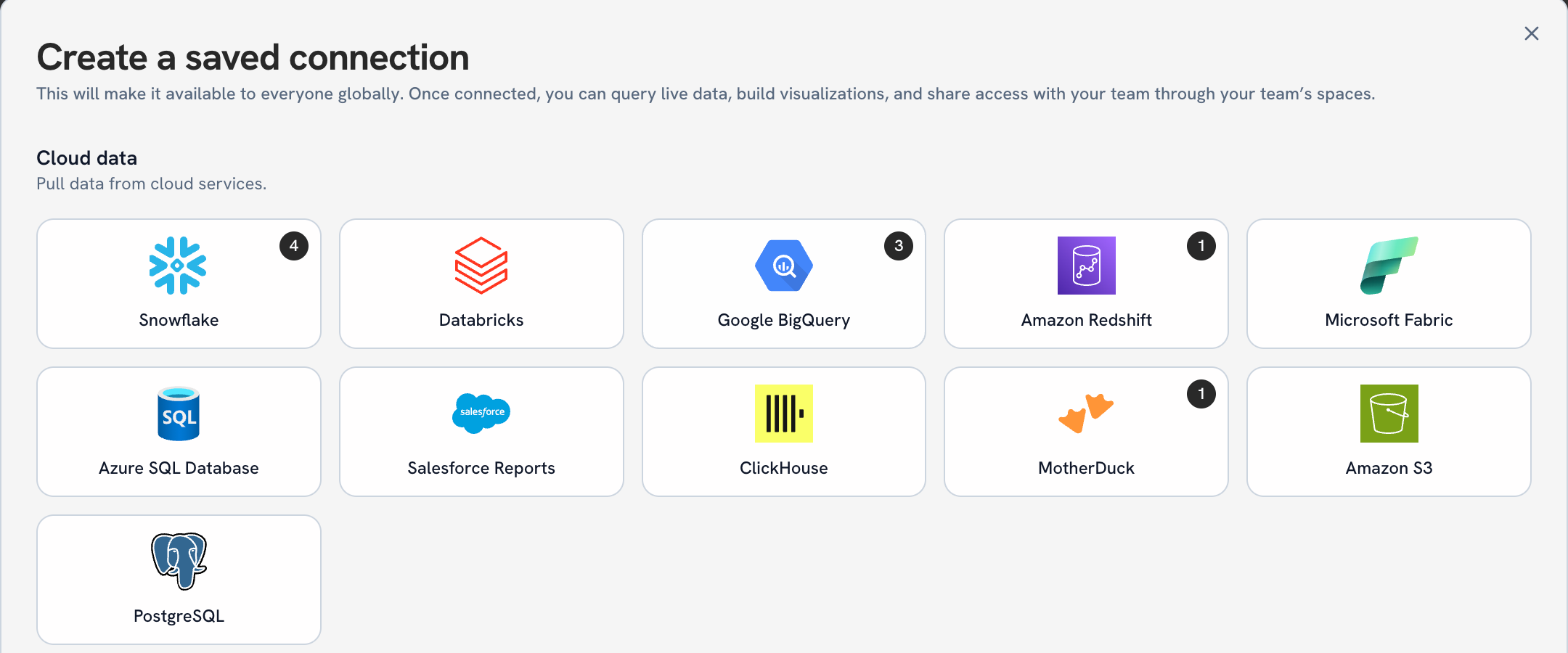
- Under Cloud data, pick MotherDuck.
- Fill in the form:
| Field | What it does |
|---|---|
| Connection name | The name your team sees in Golden, like "Acme MotherDuck". |
| Save to space | Where the connection lives. My private space keeps it to you; pick a team Space to share it with that Space's members. |
| Access token | Your MotherDuck token. It also tells Golden which MotherDuck account and region to reach, so there's no host or region to enter. |
| Database | The database Golden opens by default. Tables in it can be named without a prefix. Every other database and share stays reachable. |
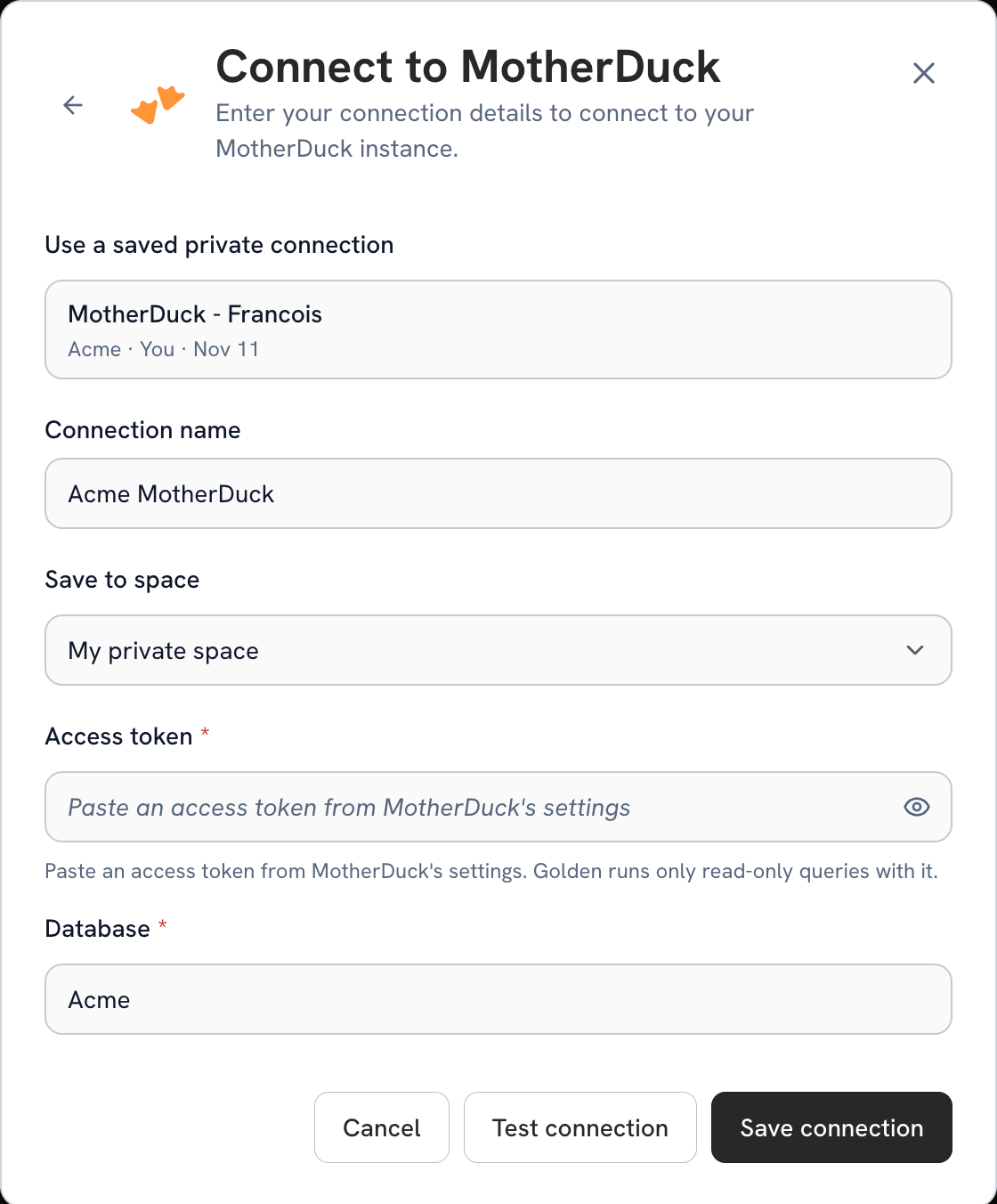
- Click Test connection to check the token and database, then Save connection.
If you already saved a MotherDuck connection, it shows under Use a saved private connection. Click it to reuse it instead of pasting the token again.
Pick your tables
Once the connection is saved, Golden opens Import Schema from MotherDuck. The heading names the connection and the default database (here, MotherDuck • Acme).
- In Browse Tables, expand a database, then a schema. Each table shows its rows and columns, and Golden tags tables that look like a Fact or Dim table.
- Click each table you want. They're listed under Selected on the left.
- Give the import a name in Import Name (the Description is optional).
- Click Preview Query to see exactly what Golden will run, then Import Schema.
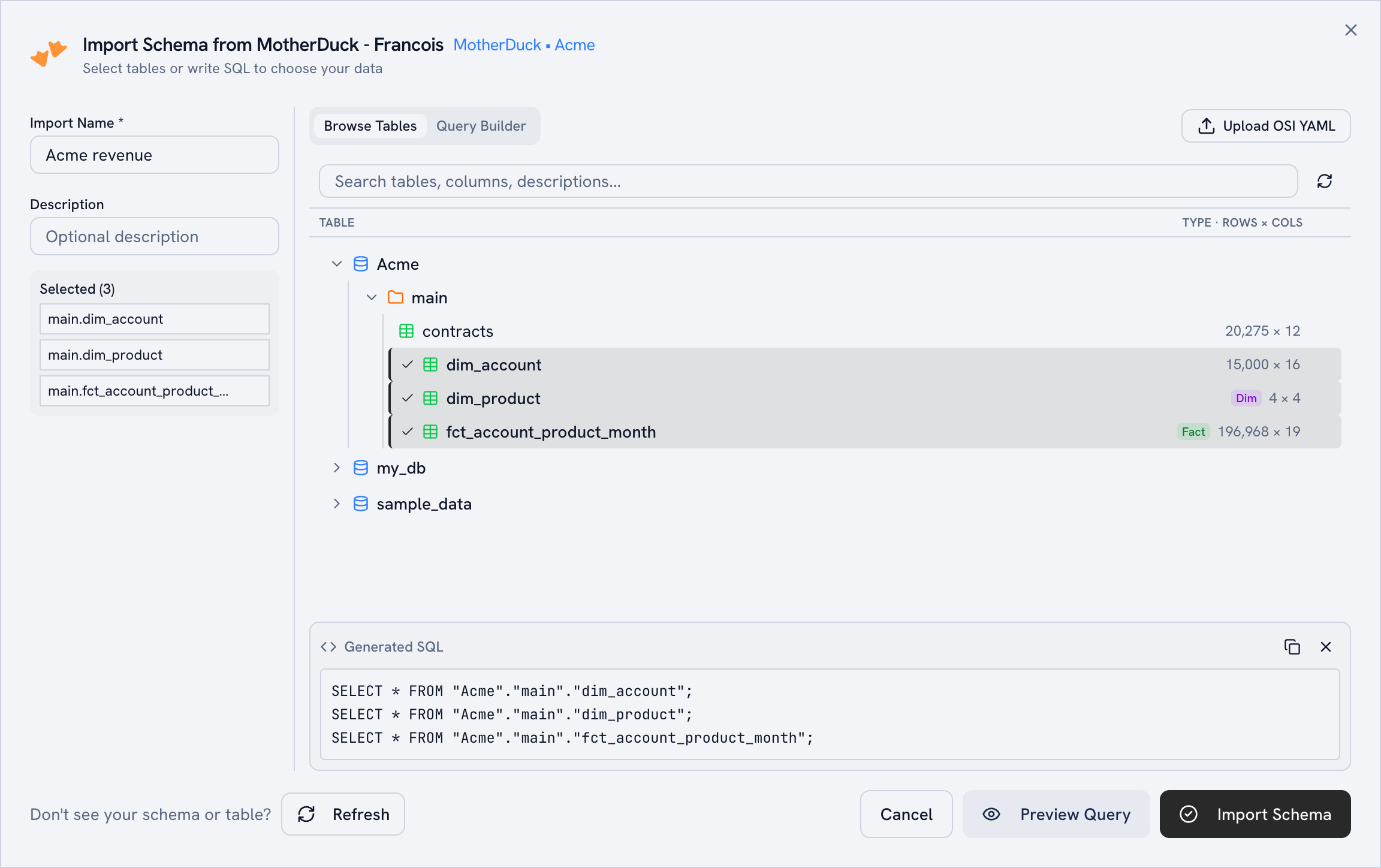
The browser lists every database the token can see, including shares like sample_data and the default database you named on the form. Use the search box to find a table or column by name, and Refresh if you just created a table in MotherDuck and don't see it yet.
Golden finds the joins
When you import more than one table, Golden detects how they join while Discover loads. Open Data, then Data model, to see the result.
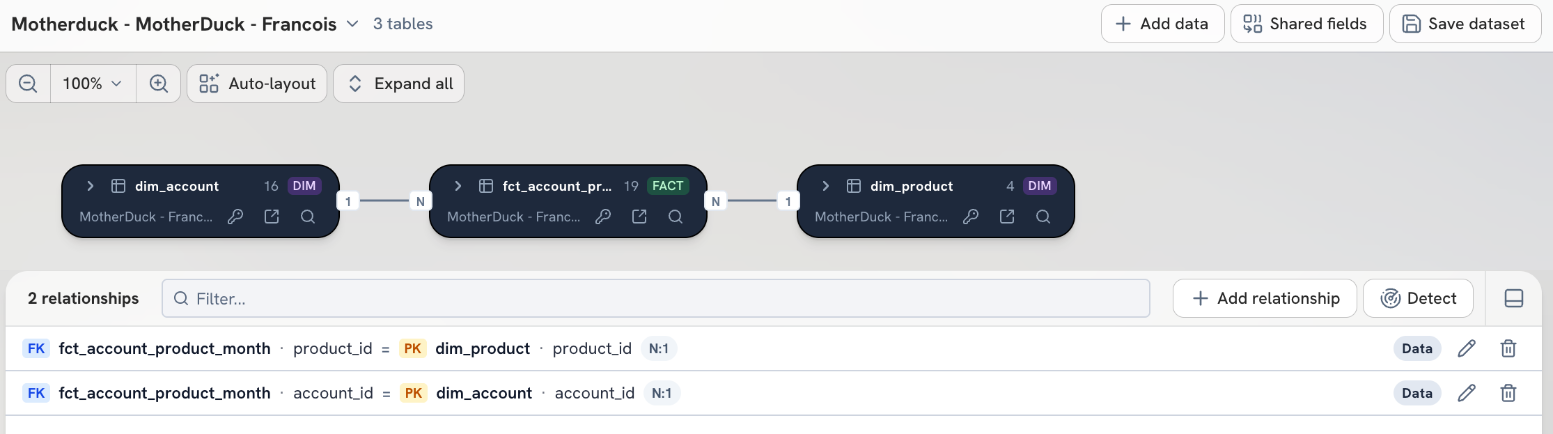
Each join is listed with its key columns and type (N:1 here). Click Add relationship to add one Golden missed, the pencil to change one, or Detect to look again.
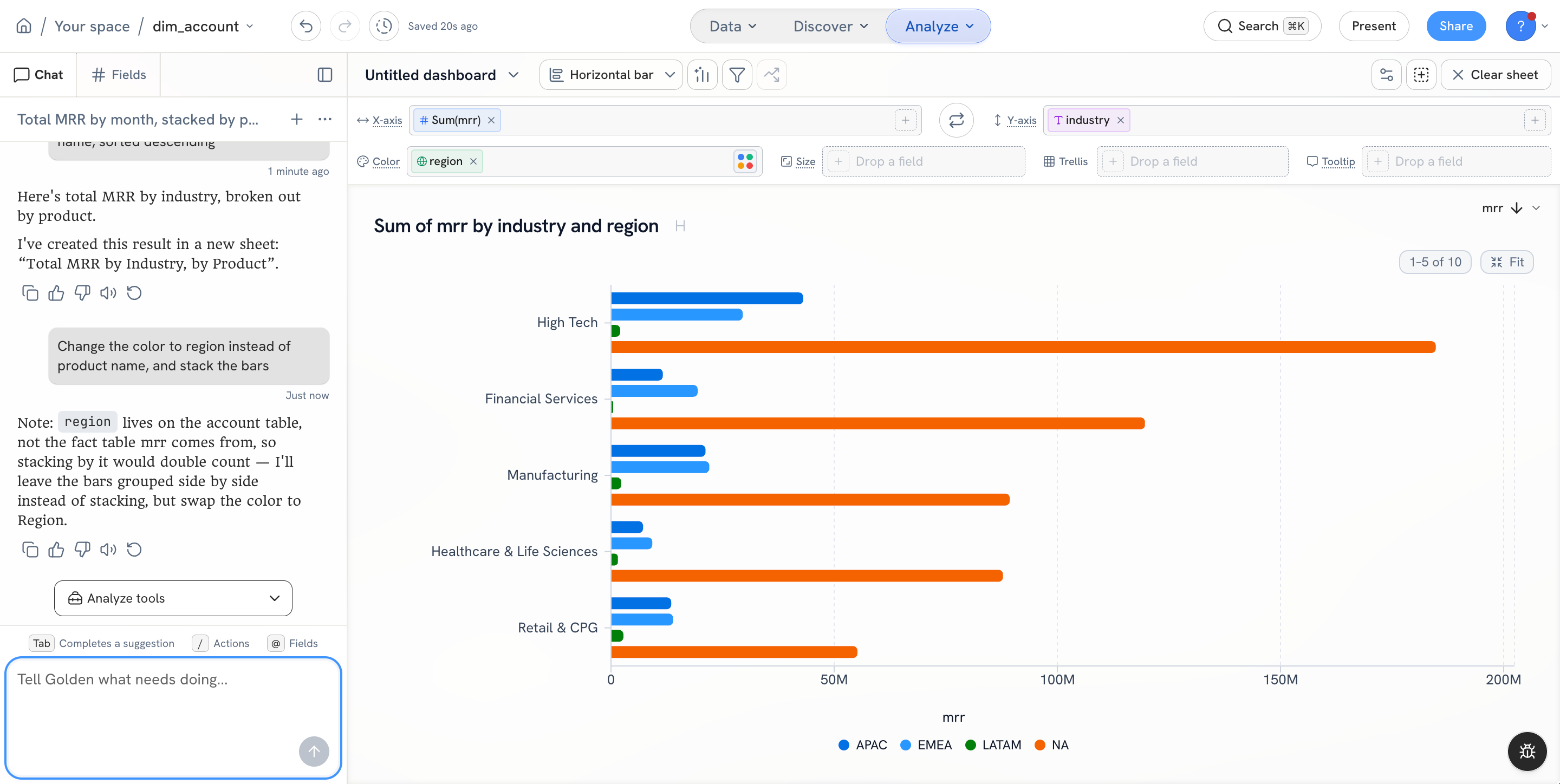
From there, charts can mix fields from every table. The chart at the top of this page sums mrr from the fact table by industry and region from the account table.
What runs on MotherDuck
Every chart and filter becomes a query that MotherDuck runs. Golden doesn't load a copy of your tables. (Discover's quick insights read a sample snapshot, and the page shows when it was pulled.)
- Read-only, twice over. Golden refuses anything but a
SELECTbefore it sends it, and runs each query inside a read-only transaction that MotherDuck itself enforces. - Exact values. Large integers and decimals keep their digits. Dates and timestamps keep MotherDuck's own value, with no time zone shift.
- Time limits. A query stops after 60 seconds by default, and Golden stops reading after 500,000 rows. Golden cancels the query on MotherDuck when it stops waiting.
Custom SQL isn't available on MotherDuck connections yet, so the import dialog shows only Browse Tables and Query Builder.
Do it from chat
Once the tables are in, chat works on them like any other data. Ask in plain words and chat builds the chart from live MotherDuck queries.
Build a chart:
Show total MRR by industry as a horizontal bar chart, colored by product name, sorted descendingChange one you have:
Change the color to region instead of product nameAsk a question:
Which industries drive the most MRR in EMEA?Chat checks your data model before it answers. Ask for a monthly trend and there's no real date field, and it says so and offers another view. Ask it to stack a measure from the fact table by a field from a dimension table, and it keeps the bars side by side so nothing gets counted twice.
Sharing
A connection saved to a team Space is available to that Space's members. They pick the connection and browse the same tables, without needing a token of their own.
Dashboards and analyses you share keep querying MotherDuck live, so everyone sees today's numbers.
FAQ
Which MotherDuck token should I use? Any access token from MotherDuck's settings works. Golden only reads with it, but a token that can see only what Golden needs is the safest choice.
Can I query a share someone sent me? Yes. Every database and share the token can see shows up in Browse Tables, next to your own databases.
Why don't I see a Custom SQL tab? Custom SQL isn't available on MotherDuck connections yet. Import tables from Browse Tables and Golden writes the SQL.
I just created a table and it's not in the list. Click Refresh at the bottom of the import dialog (or the refresh icon next to the search box) to reload the database list.
Does Golden copy my MotherDuck data? No. Golden sends read-only queries to MotherDuck and shows the results. Your tables stay in MotherDuck. Discover's quick insights work from a sample pulled for that page.