Bring in survey data
Golden spots survey exports, folds one-column-per-question layouts into one row per answer, and joins your codebook's codes and wording on the way in.
Survey tools export one column per question. That's great for reading a single response and terrible for charting a whole battery. This page covers how Golden reshapes a survey export when you upload it, and what to do when your file comes with a data dictionary attached.
When to use it
- A quarterly NPS export lands from your survey tool. A customer insights lead uploads 500 responses with 20 agree/satisfaction columns. Golden offers to reshape them before they've opened a chart.
- A research team ships a workbook with a codebook. An analyst gets one sheet of labeled answers, one of numeric codes, and a "Question Helper" sheet with every question's wording. Golden imports all three as one tidy table.
- An HR team runs an engagement pulse. Five Likert questions per employee become one Question field you can filter, sort and chart by.
If your survey has more than a handful of questions, reshape it before you build anything.
Getting started
- Click Start an analysis on Home, then Upload files.
- Drop in your CSV or Excel export.
- When Golden recognizes survey questions, it asks how to shape them. Pick an option and click OK.
Discover then reruns on the new shape, so its questions and insights talk about your survey, not about 20 separate columns.
Reshaping one-column-per-question exports
When several columns look like answers to the same kind of question, Golden tells you how many it found ("20 columns look like responses to one survey question") and why it matters: as separate columns you can't group or chart by question.
| Option | What it does |
|---|---|
| Reshape automatically | Applies the reshape now and reruns Discover on the new shape. You can undo it from the data prep history. |
| Review it first | Opens the reshape in Prepare so you can change which columns go and what the new ones are called. |
| Keep it as it is | Leaves the columns alone. You can still reshape later from Prepare. |
The You'll get this preview shows the result before you commit: one row per respondent per question, with these new columns.
| Column | What it holds |
|---|---|
| Question | The question the answer belongs to (the old column name, like "Agree Value"). |
| Response | The answer itself, like "Strongly agree". |
| Question Type | How the question was asked: Rating, Pick one or Select all. |
| Scale | The answer scale a rating question uses, like Agreement or Satisfaction, or Not a rating. |
Everything about the respondent (ID, wave, region, plan, weight) stays on every row, so you can still split any question by any segment.
What Discover does with survey data
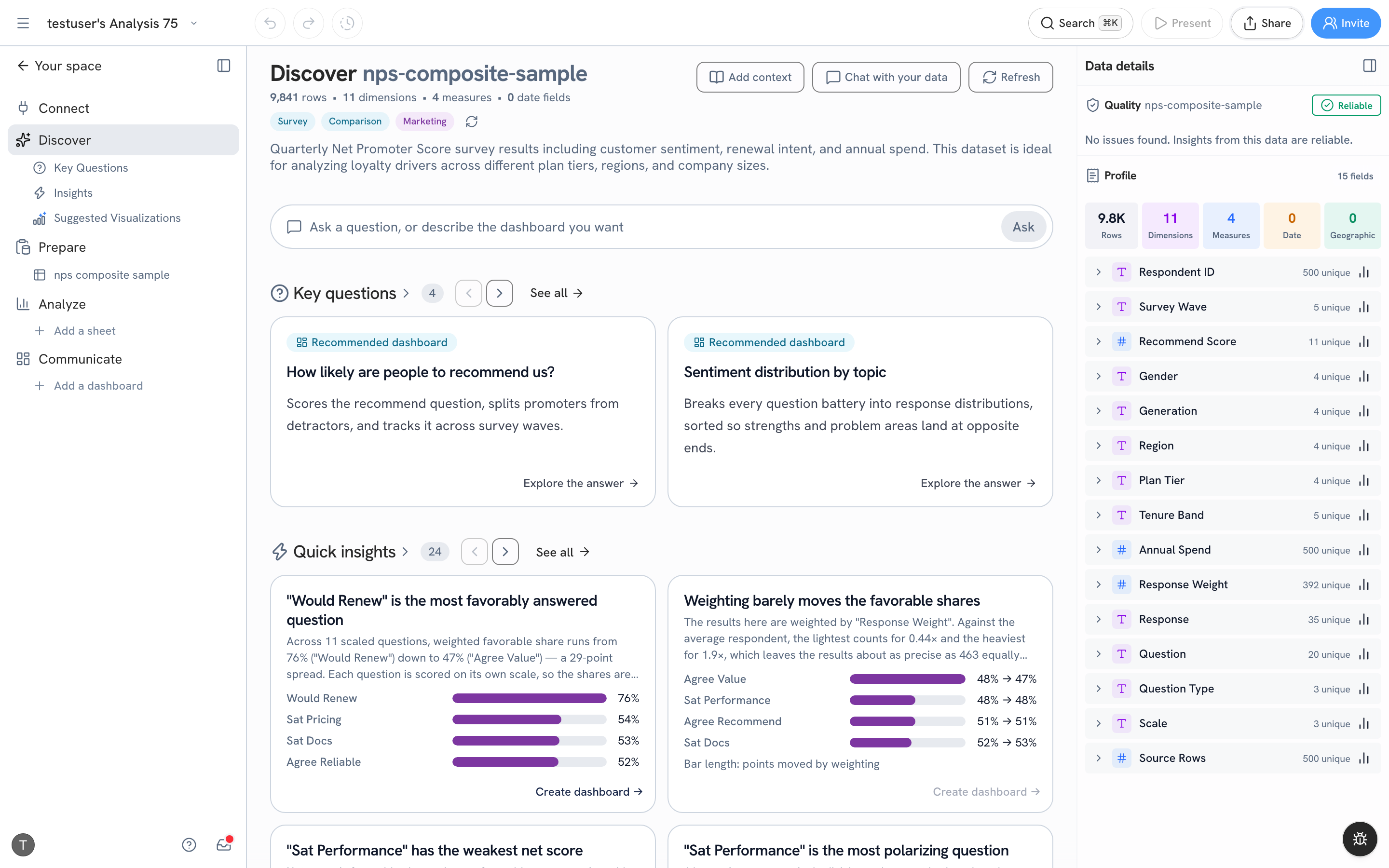
After the reshape, Discover tags the dataset Survey and its suggestions change to match:
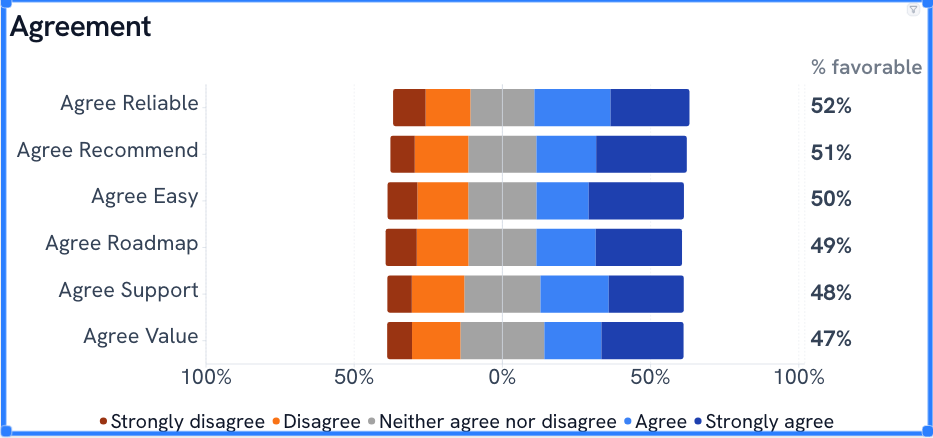
- Key questions offers survey dashboards, like "How likely are people to recommend us?" for a 0–10 recommend score and "Sentiment distribution by topic" for agree/satisfaction batteries. Click Explore the answer to build one. See Survey dashboards and Net Promoter Score.
- Quick insights reads the survey like an analyst: which question is answered most favorably, which has the weakest net score, which is most polarizing, and whether your response weights change the story.
Workbooks with a data dictionary
Some survey files ship as a workbook: answers as labels on one sheet, the same answers as numeric codes on another, and a codebook with each question's wording. Upload the workbook and Golden opens Select sheet(s) to import.
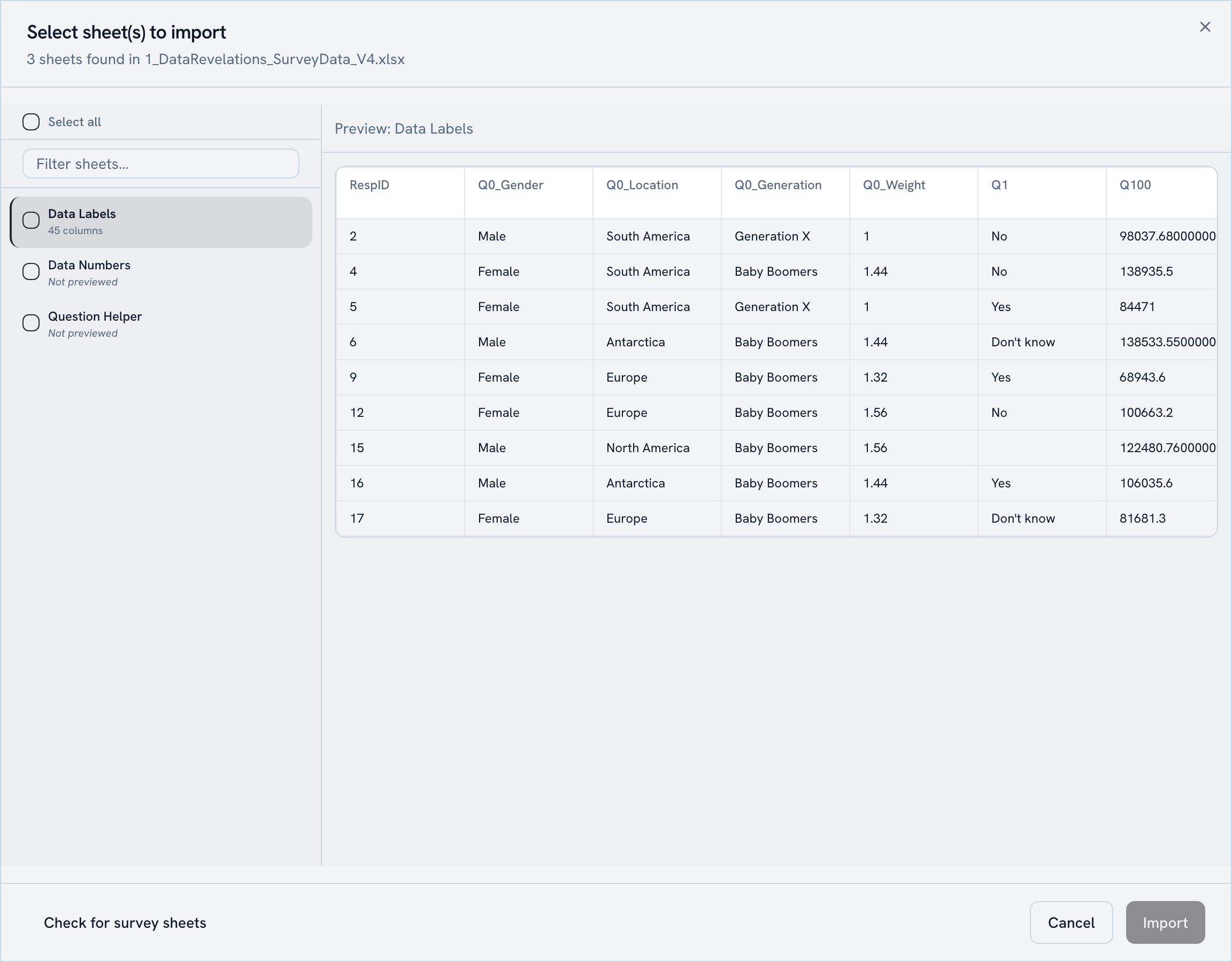
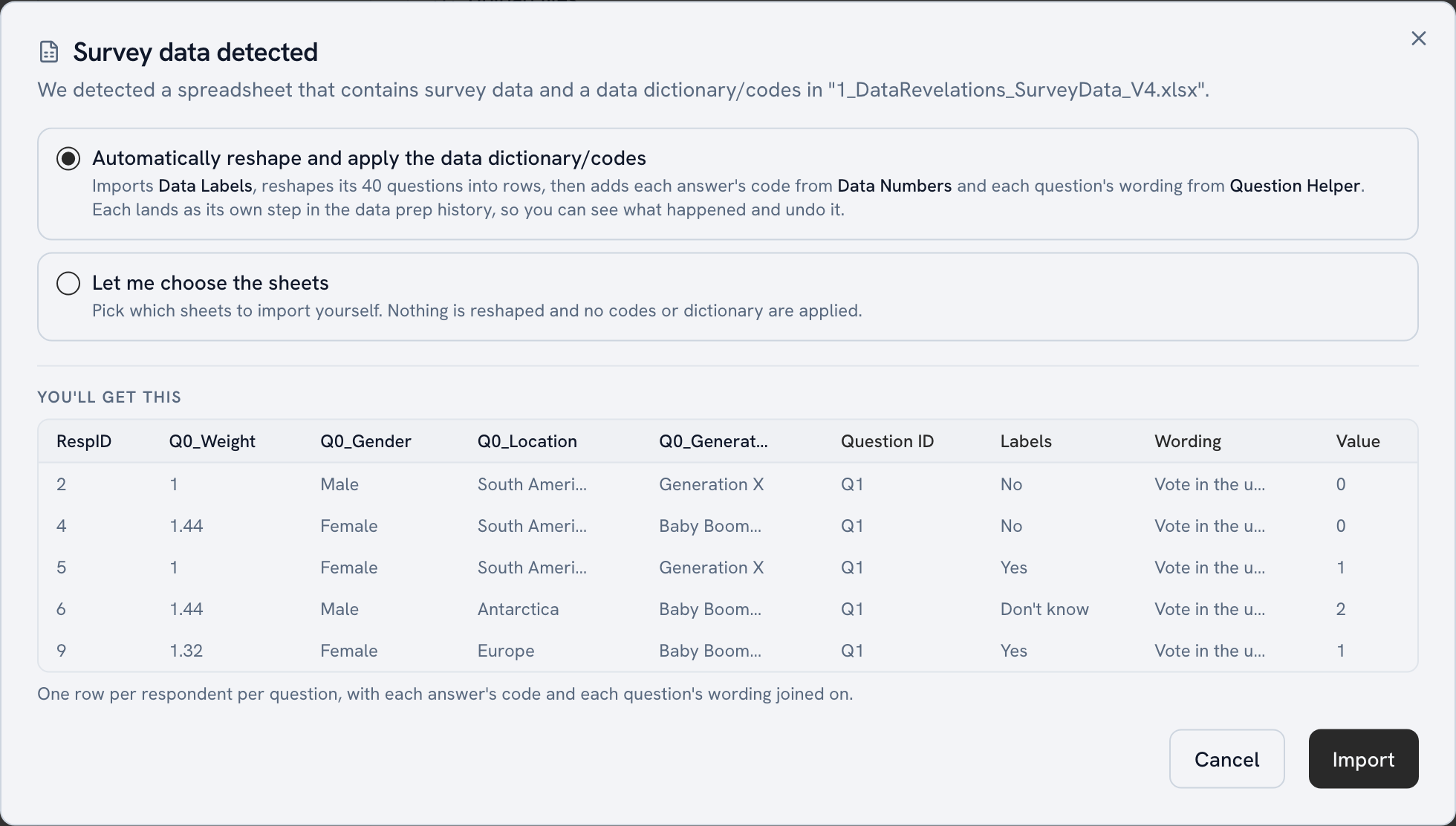
Click Check for survey sheets. When Golden finds a survey sheet and its codes, it shows Survey data detected:
| Option | What it does |
|---|---|
| Automatically reshape and apply the data dictionary/codes | Imports the labeled sheet, reshapes its questions into rows, then adds each answer's code and each question's wording. Each lands as its own step in the data prep history, so you can see what happened and undo it. |
| Let me choose the sheets | Pick which sheets to import yourself. Nothing is reshaped and no codes or dictionary are applied. |
You end up with one row per respondent per question, with the answer label, its numeric code and the full question wording side by side. Sort by code, show the wording in chart titles, and filter by the label.
Do it from chat
Once your data is reshaped, chat can work with questions and answers directly:
Show the share of each Response by Question for questions on the Agreement scaleWhich question has the most Strongly disagree answers?Compare favorable answers between Enterprise and Free plan tiersChat doesn't reshape the file for you. Use the upload dialog, or Prepare, for that.
FAQ
Can I undo a reshape? Yes. Every reshape is a step in the data prep history in Prepare. Remove it and your original columns come back.
Golden didn't offer to reshape my file. Now what? Open the dataset in Prepare and reshape it there. You pick which columns become rows.
What happens to respondent attributes like region or weight? They're copied onto every answer row, so any question can be split by any attribute.
My workbook has more sheets than the survey. Is that a problem? No. Survey data detected names the sheets it uses. Choose Let me choose the sheets if you want something else.